Archive | Code RSS feed for this section

AJAX Uploading with HTML5′s File API

10 May

Prior to HTML5 and its File API, getting media from a user was a somewhat sordid affair. You generally either had a static page with an <input> element of a <form> posting to a processing file or utilized some third party script that relied on a Flash bridge or <iframe> shenanigans to asynchronously get the file where it needed to go.

This leads to things like this demo and how you can drag ‘n drop (‘n upload) files with Gmail. Seeing as how I was tired of doing the aforementioned Flash or <iframe> bullhonky, I decided it was time to get the ball rolling for myself.

Accessing the Files

It’s actually surprisingly simple to see what a user has chosen to upload in a <input> (of a file type, of course). You can access all of the vital pieces of information through JavaScript once they’ve been selected, and I say “they” because if you specify the multiple attribute in the <input>, you can then select multiple items:

1
2
3
4
5
6
7
8
9
document.getElementById('file-input-element').onchange = function(){
    if(this.files.length < 1) return false;
    for(var i = 0; i < this.files.length; i++) console.log(this.files[i]);
};
/**
 * name - file name
 * size - file size in bytes
 * type - file MIME type
**/

Aside from the attributes, there are also some pretty sweet functions like getAsDataURL() and getAsText() which can have some cool uses (such as dynamically loading an image as a CSS background image in data form), but we’ll have to save that for another day. All we need right now is access to that files array.

Uploading the Files

It starts pretty much the same as any other AJAX data transfer, which is with a XMLHttpRequest object. The only difference is that since usually everything I do is with a GET request, I just put any key-value pairs in the URL and access the information server side. However, since the file data may (and probably will) exceed the URI size limit, it’s best to go with POST.

So then you may be asking “how do we get the files to go along with the XHR request?” It’s actually quite simple: just use a FormData object.

1
2
3
4
5
6
7
8
9
10
11
12
var xhr = new XMLHttpRequest();
xhr.upload.addEventListener('progress',function(ev){
    console.log((ev.loaded/ev.total)+'%');
}, false);
xhr.onreadystatechange = function(ev){
    // Blah blah blah, you know how to make AJAX requests
};
xhr.open('POST', url, true);
var files = document.getElementById('file-input-element').files;
var data = new FormData();
for(var i = 0; i < files.length; i++) data.append('file'+i, files[i]);
xhr.send(data);

You might be wondering why not just use the FileReader interface and upload with something pre-built like the jQuery $.ajax() method, and you’ll find the answer in the progress event listener; the $.ajax() method and the like doesn’t allow for it and I really want to display an upload progress bar, dammit!

Is that it?

Yeah, that’s it. Pretty easy, right? On the server side, the files are accessed just as if they were uploaded via a form and POSTed (in PHP’s case, they’re located all in the $_FILES array). I bundled it all up in a nice little JavaScript object which you can find over at my GitHub complete with options and some helpful methods. Have fun with it and be sure to leave a comment if you think of something I could/should change.

View the demo (requires an HTML5-capable browser). I hacked together my own version of a <progress> element since at the time of this writing, only WebKit browsers have it sufficiently implemented (though I can’t seem to figure out why it doesn’t fully function as expected in Opera).

HTML5 Video Player For WebKit

20 Apr

I had to play some videos in Chrome recently, but the player had to be custom for the project. Rather than tinker with some pre-made solutions out there, I instead decided to do this myself and see what I could accomplish (disclaimer: I’ve actually written something like this a few times before, but I never got around to writing about it).

Looking Good

The end goal was to achieve something that looks like this (in a modal overlay):

The main challenge I could see would be the progress bar. Being that I only had WebKit browsers with which to concern myself, my first instinct was to use the <progress> element. However, is it possible to style this element with CSS?

Absolutely sort of! As long as you’re using a WebKit browser, it turns out that you can use the vendor-specific selector pseudo element ::-webkit-progress-bar-value (relevant Stack Overflow post) to style the value portion of the element in addition to the actual element itself. I’m sure the other engines will follow suit eventually, but it’s just WebKit for now.

Here’s the HTML structure I ended up with:

1
2
3
4
5
6
7
8
9
10
11
12
13
14
15
<div class="video-player-wrapper">
    <div class="video-player">
        <video>
            <source src="/video.ogv" type='video/ogg; codecs="theora, vorbis"'>
        </video>
        <div class="video-player-bar">
            <button class="video-player-play"></button>
            <span class="video-player-timer">0.00</span>
            <progress class="video-player-seek">0.00</progress>
            <span class="video-player-duration">0.00</span>
            <a class="video-player-knob"></a>
        </div>
    </div>
    <a class="video-player-skip"></a>
</div>

As a side note, I put an .ogv video file in there just to remind you that they are the preferred format for HTML5 videos. In my experience, other formats such as .mp4 will occasionally freeze Chrome and probably make you sad. I’ve encountered some issues with .webm, too, while .ogv and .m4v have yet to halt my browser.

Here’s the CSS to make things look like they should:

1
2
3
4
5
6
7
8
9
10
11
12
13
14
15
16
17
18
19
20
21
22
23
24
25
26
27
28
29
30
31
32
33
34
35
36
37
38
39
40
41
42
43
44
45
46
47
48
49
50
51
52
53
54
55
56
57
58
59
60
61
62
63
64
65
66
67
68
69
70
71
72
73
74
75
76
77
78
79
80
81
82
83
84
85
86
87
88
89
90
91
92
93
94
95
96
97
98
99
100
101
102
103
104
105
106
107
108
109
110
111
112
113
114
.video-player-wrapper {
    top:0;
    left:0;
    width:100%;
    height:100%;
    z-index:9999;
    color:#FFFFFF;
    position:absolute;
    background:rgba(0,0,0,.85);
    -webkit-user-select:none;
}
    .video-player-wrapper .video-player-skip {
        width:40px;
        height:40px;
        border:2px solid #FFFFFF;
        border-radius:20px;
        background:#000000;
        position:absolute;
        text-align:center;
        font-size:30px;
    }
        .video-player-wrapper .video-player-skip::before {
            content:'x';
        }
.video-player {
    position:absolute;
    overflow:hidden;
}
.video-player-bar {
    position:absolute;
    bottom:0;
    left:0;
    width:100%;
    height:65px;
    background:-webkit-linear-gradient(left,rgba(0,0,0,.7) 0px,rgba(0,0,0,.7) 95px,transparent 95px,transparent 98px,rgba(0,0,0,.7) 98px);
    -webkit-transition:bottom .4s ease-in;
}
    .video-player-bar.hide {
        bottom:-65px;
    }
    .video-player-knob {
        display:block;
        position:absolute;
        background:#FFF;
        border-radius:22px;
        width:44px;
        height:44px;
        bottom:46px;
        left:161px;
        opacity:.6;
        -webkit-box-shadow:0 0 3px rgba(0,0,0,.8);
        -webkit-transition:opacity .4s ease-in;
    }
        .video-player-knob::before {
            content:'';
            display:block;
            width:1px;
            background:#FFF;
            height:16px;
            bottom:-16px;
            left:21px;
            position:absolute;
        }
        .video-player-bar.hide .video-player-knob {
            opacity:0;
        }
    .video-player-bar .video-player-play {
        display:inline-block;
        height:100%;
        width:95px;
        border:none;
        -webkit-box-sizing:border-box;
        padding:0;
        margin-right:16px;
        background:transparent;
        text-align:center;
    }
        .video-player-bar .video-player-play:before, .video-player-bar .video-player-play:after {
            content:'';
            display:inline-block;
        }
        .video-player-bar .video-player-play.play:before {
            border-style:solid;
            border-width:12px;
            border-color:transparent transparent transparent #FFF;
            margin:5px 0 0 9px;
        }
        .video-player-bar .video-player-play.pause:before, .video-player-bar .video-player-play.pause:after {
            width:5px;
            height:24px;
            background:#FFF;
            margin:5px 3px 0 3px;
        }
    .video-player-bar span {
        font-size:21px;
        width:50px;
        margin:23px 11px 0 11px;
        display:inline-block;
        vertical-align:top;
        text-shadow:0 0 4px rgba(0,0,0,.8);
    }
.video-player-bar .video-player-seek {
    height:4px;
    width:100px;
    border-radius:2px;
    background:#FFF;
    margin:31px 10px 0 0;
    vertical-align:top;
    -webkit-appearance:none;
}
    .video-player-bar .video-player-seek::-webkit-progress-bar-value {
        background:-webkit-linear-gradient(top, #37d0ff, #35addb);
        border-radius:2px;
    }

You’ll notice all the special CSS3 things like box shadows and gradients are WebKit-specific. Other vendor prefixes for Mozilla and Opera (and the CSS3 standard) can be added if necessary.

The jQuery Magic

Although not written as a jQuery plug-in (which will probably happen at some point down the line), this puppy does use it to make things easier on the JavaScript side of things.

First is to set up the videoPlayer object. This includes extending user options with the defaults, instantiating the object status variables, and creating and adding the new DOM elements:

1
2
3
4
5
6
7
8
9
10
11
12
13
14
15
16
17
18
19
20
21
var $this = this;

this.settings = {autoOpen:true, autoPlay:true, autoClose:true, controlTimeout:3500, skip:function(){ $this.close(); }, close:function(){}, open:function(){}};
$.extend(this.settings, options);

this.opened = false;
this.htimer = null;
this.seeking = false;
this.control = false;

this.$elem = $elem.css('pointer-events','none');
this.video = $elem.get(0);
this.$play = $('<button class="video-player-play pause">');
this.$time = $('<span class="video-player-timer">0.00</span>');
this.$seek = $('<progress class="video-player-seek" value="0" max="0">0%</progress>');
this.$maxt = $('<span class="video-player-duration">0.00</span>');
this.$ctrl = $('<div class="video-player-bar hide">');
this.$knob = $('<a class="video-player-knob">');
this.$skip = $('<a class="video-player-skip">');
this.$skin = $('<div class="video-player">').width($elem.width()).height($elem.height()).append($elem).append($this.$ctrl.append($this.$play).append($this.$time).append($this.$seek).append($this.$maxt).append($this.$knob));
this.$wrap = $('<div class="video-player-wrapper">').css('display','none').appendTo('body').append(this.$skin).append(this.$skip);

Most of the methods like play() and pause() are pretty self-explanatory, but setTime() and setPosition() are somewhat complex:

1
2
3
4
5
6
7
8
9
10
11
12
13
this.setTime = function(time){
    time = parseFloat(time);
    var vduration = parseFloat($this.$elem.attr('duration'));
    if(time > vduration) time = vduration;
    else if(time < 0) time = 0;
    $this.$elem.attr('currentTime',time);
    $this.$time.html($this.formatTime(time));
    $this.$seek.val(time).html(time / vduration);
    $this.$knob.css('left',($this.$seek.offset().left - $this.$skin.offset().left) + ($this.$seek.width() * (time / vduration)) - ($this.$knob.width() / 2));
};
this.setPosition = function(pageX) {
    $this.setTime(parseFloat((pageX - $this.$seek.offset().left) / $this.$seek.width()) * parseFloat($this.$elem.attr('duration')));
};

setPosition() takes an x-position of the page and converts it to a time within the range of the video’s duration. If the x-position is to the left of the seek bar, the time is set to zero. If the x-position is to the right of the seek bar, the time is set to the video’s duration (and subsequently will stop). If the x-position is within the left and right x-positions of the seek bar, then we take its position ratio against the video’s duration and uses setTime() to set the place in the video playback.

One other thing that might jump out at you is the createSeek():

1
2
3
4
5
6
7
8
9
10
11
12
13
14
15
16
17
18
19
20
21
22
23
// Things don't really start until the video is ready, i.e. video.readyState == true
var createSeek = function(){
    if($this.$elem.attr('readyState')) {
        var updateTime = function(ev){
            if(!$this.seeking) {
                $this.setTime($this.$elem.attr('currentTime'));
                if($this.$elem.attr('currentTime') >= $this.$elem.attr('duration')) {
                    $this.stop();
                    if($this.settings.autoClose) $this.close();
                }
            }
        };
        $this.$seek.attr('max', $this.$elem.attr('duration'));
        $this.$maxt.html($this.formatTime($this.$elem.attr('duration')));
        $this.$elem.bind('timeupdate', updateTime);
        if($this.settings.autoOpen) $this.open();
        updateTime();
    }
    else {
        setTimeout(createSeek, 150);
    }
};
createSeek();

This function isn’t called ever again (or at least shouldn’t be) and is truly only used for object instantiation. You have to wait for the video DOM element to return a readyState attribute so you know the video is loaded and ready to play. Otherwise, you just set a timeout to keep checking the readyState until the video is ready so you can apply the updateTime() function to the timeupdate event of the video.

Lastly, there’s just a little bit of fun geometry. It moves the skip/close button to the very upper-right corner of the video player.

This is done by finding the distance from the center of the element to one of its corners (its a square in the DOM even though it renders as a circle), subtracting the radius of the circle (which is also half the width of the square), and using the resulting value as the hypotenuse of an isosceles right triangle whose other sides are used as offsets from the top right corner of the video player.

1
2
3
4
5
// Move the skip/close button to the very top right corner of the player
var w = this.$skip.width(),
    n = (Math.sqrt(Math.pow(w, 2) + Math.pow(w, 2)) / 2) - (w / 2),
    o = Math.sqrt(Math.pow(n, 2) / 2);
this.$skip.offset({left:(parseInt(this.$skin.css('left')) + this.$skin.width()) - o, top:parseInt(this.$skin.css('top')) - this.$skip.height() + o});

In Conclusion

That’s that! If you want to read about how to use it, check out my GitHub for this particular little doodad. There are still a few things left to do, or at least things I’d like to eventually get around to doing since in its current state, this guy does exactly what I need it to do.

  • Add volume controls – it’s simple enough. It works almost like the seek bar except it controls the volume.
  • Turn into a jQuery plug-in – it currently relies on jQuery, so I should probably make it a jQuery plug-in instead of calling it as a new object (that, or just get rid of the dependency).
  • Improved seek controls – if you jump around too fast, the events fire out of order and the video will go back to its pre-seek position after mouse release. Currently, you can avoid this by going a bit slower or by moving the mouse slightly either direction before releasing.
  • Expand to other HTML5 browsers – currently only supports WebKit browsers even though <video> elements belong to HTML5 in general, so it would make sense to make this plug-in do the same.

View the demo (requires a WebKit browser). Video is from Oceans.

Using Three.js and JigLibJS Together

8 Mar

For whatever reason, one of my projects at my current employer led me to a need for doing some 3D work in HTML5′s canvas element. After a few hack-ish, amateur attempts at repurposing what I’d done for Mega Hovertank Wars, I decided to use something with a community behind it and found three.js from Mr.doob, a man you may have heard of through his work on Arcade Fire’s HTML5 experiment “The Wilderness Downtown.” There are plenty of other options out there (including some that use WebGL rather than a pure canvas renderer), but I think after perusing its examples and reading Seb Lee-Delisle’s blog, I’d settled on three.js.

By modifying the geometry_cube.html example, I arrived at this:

Altering the geometry_cube.html three.js example

All I did was change the face materials of the starting cube and used that materials array to color the 5 flaps below (along with changing some Camera() and Cube() dimension and position parameters, but those are pretty obvious):

1
2
3
4
5
6
7
8
9
10
11
12
13
14
15
16
17
18
19
20
21
22
23
24
25
26
27
28
29
30
31
camera = new THREE.Camera( 45, window.innerWidth / window.innerHeight, 1, 3000 );
camera.position.y = 50;
camera.position.z = 1500;
camera.target.position.y = 50;

scene = new THREE.Scene();

// Cube

var materials = [];
materials.push( [ new THREE.MeshBasicMaterial( { color: 0x0000ff } ) ] );       // Left side
materials.push( [ new THREE.MeshBasicMaterial( { color: 0x666666 } ) ] );       // Right side
materials.push( [ new THREE.MeshBasicMaterial( { color: 0xff0000 } ) ] );       // Top side
materials.push( [ new THREE.MeshBasicMaterial( { color: 0x00ff00 } ) ] );       // Bottom side
materials.push( [ new THREE.MeshBasicMaterial( { color: 0xcccccc } ) ] );       // Front side
materials.push( [ new THREE.MeshBasicMaterial( { color: 0x000000 } ) ] );       // Back side

cube = new THREE.Mesh( new Cube( 925, 460, 10, 1, 1, materials ), new THREE.MeshFaceMaterial() );
cube.position.y = 150;
cube.overdraw = true;
scene.addObject( cube );

// Flap
for(var i = 0; i < offset.length; i++) {
    flap[i] = new THREE.Mesh( new Cube( 160, 160, 10, 1, 1, materials ), new THREE.MeshFaceMaterial() );
    flap[i].autoUpdateMatrix = false;
    flap[i].overdraw = true;
    flap[i].position.y = flap[i].originalY = (i % 2 == 1 ? -210 : -250);
    flap[i].position.x = offset[i];
    scene.addObject(flap[i]);
}

That was the simple part. The only true oddity is setting the autoUpdateMatrix attribute of each square to false. This is because if you don’t do this, you can’t manually modify each square’s matrix later on. Also, if you notice, when you drag around on the example, the cube spins, and I wanted to incorporate that into the “flaps” animations.

Relative Animation

Well, that’s what I’m calling it anyways. What it really means is that I based the “flapping” intensity on the difference between the main panel’s targetRotation and current rotation (cube.rotation.y).

The physics I was hoping to achieve was something that looked like there is a rope between the panel and the squares and they flail in the wind behind the panel as it rotates. Something like this:

It looks pretty good considering the code is based mostly on basic advanced math.

1
2
3
4
5
6
7
8
9
10
11
12
13
14
15
16
17
18
19
20
21
22
var cval = Math.cos(cube.rotation.y);
var sval = Math.sin(cube.rotation.y);
var rot = (targetRotation - cube.rotation.y) * 0.6;
var dir = new THREE.Vector3(cval, 0, -sval);

for(var i = 0; i < flap.length; i++) {
    var nrot = rot * Math.abs(offset[i] / 382.5);
    if(nrot > PI2) nrot =PI2;
    else if(nrot < -PI2) nrot = -PI2;

    flap[i].position.x = offset[i] * cval;
    flap[i].position.z = -offset[i] * sval;

    if(offset[i] != 0) {
        flap[i].position.y = (flap[i].originalY + 80) - Math.abs(Math.cos(nrot) * 80);
        var rval = Math.sin(nrot) * flap[i].originalY;// flap[i].originalY for trailing, flap[i].height/2 (or 80) for hinge
        flap[i].position.x += rval * sval * -(offset[i] / Math.abs(offset[i]));
        flap[i].position.z += rval * cval * -(offset[i] / Math.abs(offset[i]));
    }

    alignCube(flap[i], dir.normalize(), (offset[i] < 0 ? 1 : -1) * nrot);
}

The first key is that in the lines where I’m setting each flap’s position.y, position.x and position.z values, that is to give the “roped” effect. All I’m really doing is adding to each position coordinate as if it were rotating on a hinge. Simple math!

The second key is that you are determining the vector pointing along the front face of the panel at any given point of the rotation by taking the Math.cos() and Math.sin() values of the current rotational value of the panel. This allows us to find the axis we need to rotate each square.

3D Rotation Along An Arbitrary Axis

However, doing this was harder than I thought it would be. After some quick Googling, however, I found an extremely helpful Stack Overflow post and simply adapted some of the help in the discussion for my own purposes:

1
2
3
4
5
6
7
8
9
10
11
12
13
14
function alignCube(target, dir, rot) {
    var up = new THREE.Vector3(1, 0, 0);
    var angle = Math.acos(up.dot(dir));
    var axis = new THREE.Vector3();
    axis.cross(up, dir);
    axis.normalize();
    var position = THREE.Matrix4.translationMatrix( target.position.x, target.position.y, target.position.z );
    var rotate = THREE.Matrix4.rotationAxisAngleMatrix(axis, angle);
    var revolve = THREE.Matrix4.rotationAxisAngleMatrix(dir, rot);
    var scale = THREE.Matrix4.scaleMatrix( 1, 1, 1 );
    revolve.multiplySelf(rotate);
    position.multiplySelf(revolve);
    target.matrix = position;
}

To simplify, you want to find the axis and angle that will get the original vector to match the desired vector, cross-multiply them, and normalize. That will allow you to form the rotation and revolution matrices which you can then multiply with the position matrix (the ordering of which is important, i.e. (revolve x rotate) x position) which results in the final position and orientation matrix.

Integrating JigLibJS Physics

Unfortunately, this wasn’t as realistic as I’d hoped. I could have done more tweaking to avoid some faults against true physics (such as when you abruptly change directions but only to stop rotation, the squares don’t swing back and forth in a natural fashion), but the end goal for this little side project was much more grand to the point where it just made more sense to use real physics.

Always interested by physics engines such as Havok, a popular choice for video game developers, I started to browse. I first arrived at a port of the Bullet Physics Library for JavaScript by Pl4n3, but it was incredibly buggy. Object would collide and bounce and almost always freeze. I love the effort, but bullet.js was a definite no-go.

Remembering a physics library called JigLib that was ported to Flash from Java, I hoped that someone had done the same for JavaScript, and luckily someone had! JigLibJS was functional, actively developed, and—most importantly—stable.

If you’re not aware (and I wasn’t prior to this little excursion, though in hindsight, it makes total sense), physics engines work by pretty much having you define objects from your rendered model world in the physics world. You then access the objects in the physics engine and take their position and orientations and apply them to the rendering engine, so this is what I did.

1
2
3
4
5
6
7
8
9
10
11
12
13
14
var system = jigLib.PhysicsSystem.getInstance();
system.setGravity([0,-9.8,0,0]);//-120
system.setSolverType('ACCUMULATED');//FAST, NORMAL, ACCUMULATED

var ground = new jigLib.JPlane(null,[0, 1, 0, 0]);
ground.set_friction(10);
system.addBody(ground);
ground.moveTo([0,-650,0,0]);

panel = new jigLib.JBox(null, 925, 10, 460);
panel.set_mass(50);
panel.moveTo([0, 150, 0, 0]);
panel.set_movable(false);
system.addBody(panel);

JigLibJS is pretty intuitive. The first two lines are system-wide parameters in that everything works on a -9.8 units per second per second gravity and uses the accumulated solver type (it’s the most accurate but is also the slowest of the three).

JigLibJS automatically considers JPlane() objects to be immovable and can thus easily be added to be ground and wall boundaries in the physics system. Other items like boxes are defined and moved about in a manner similar to three.js, so that was handy. One key line for the panel variable is the set_movable(false) so that it isn’t not going to move about under gravity or as other JigLibJS objects collide with it.

I simply repeated that for each square that I wanted and voila, an accurate representation of my models in JigLibJS!

Putting three.js and JigLibJS Together

At this point it was really just taking one matrix (from JigLibJS) and setting the three.js matrix to it. The only weird thing is that I chose to orient the JigLibJS representation of the panel to the three.js representation while the squares went the other way around, i.e. from three.js to JigLibJS. This becomes clear later when I do the world constraints.

1
2
3
4
5
6
7
8
9
10
11
12
13
14
15
16
cube.rotation.y += ( targetRotation - cube.rotation.y ) * 0.05;
panel.set_rotationY( cube.rotation.y * (180/Math.PI) );

now = new Date().getTime();
system.integrate((now - then) / 75);//400
then = now;

for(var i = 0; i < offset.length; i++) {
    var pos = obj[i].get_currentState().position;
    var dir = obj[i].get_currentState().get_orientation().glmatrix;
    var position = THREE.Matrix4.translationMatrix( pos[0], pos[1], pos[2] );
    var rotate = new THREE.Matrix4(dir[0], dir[1], dir[2], dir[3], dir[4], dir[5], dir[6], dir[7], dir[8], dir[9], dir[10], dir[11], dir[12], dir[13], dir[14], dir[15]);
    position.multiplySelf(rotate);
    flap[i].matrix = position;
    flap[i].update(false, true, camera);
}

It’s very similar to the alignCube() function we had before, except the trouble of turning an axis and an angle into a matrix is done for us prior by JigLibJS. The result is some square falling from underneath the panel and laying there. Exciting, right?

But remember? I want them to hang like they’re on ropes, not fall straight to the ground!

JigLibJS Constraints

Luckily, JigLibJS has these things called constraints. The unfortunate thing is that they don’t work exactly as you would imagine. Whereas the JConstraintMaxDistance seems like it should work (or even the JConstraintPoint), they both have a slight…elasticity to their constraining action and it can’t really be avoided. I even tried out the spring simulation solution, but, surprise surprise, it behaved more like a spring than a rope.

Instead, I used JConstraintWorldPoint. It still has a slight stretch to the constraint distance, but it holds pretty well so long as you don’t spin the panel too fast.

1
2
con[i] = new jigLib.JConstraintWorldPoint(obj[i], [0,80,0,0], [offset[i], (i % 2 == 1 ? -130 : -170), 0, 0]);
system.addConstraint(con[i]);

This little piece of code was simply added into the loop I had going for when I was creating each square in JigLibJS. It simply adds the constraint to the physics system.

However, since these constraints are simply bound to a point in the world (this is where using JConstraintMaxDistance would have been much simpler), you have to manually move each point that each square is bound to. Luckily, I’d previous solved this little puzzle back when I was doing relative animation.

1
2
3
4
5
var cval = Math.cos(cube.rotation.y);
var sval = Math.sin(cube.rotation.y);
for(var i = 0; i < offset.length; i++) {
    con[i].set_worldPosition([offset[i]*cval, flap[i].originalY+80, -offset[i]*sval, 0]);
}

That takes place within the animation loop and simply iterates over each constraint and moves it according to the orientation of the three.js representation of the panel. If it all goes according to plan, it should look something like this when spun.

Yeah, it doesn’t look like they’re on ropes, but hey, it’s a lot closer than I was a few days ago.

View the demo (requires an HTML5-capable browser). You can use the up and down arrow keys to move the camera and click the squares to add and remove their respective JigLibJS constraints. The panel also auto-aligns every five seconds, so don’t freak out when things move without you doing anything.

HTML5 Canvas Particle Animation

19 Jan

UPDATE: yes, I know some people out there will see some flickering when viewing the demo. This is because a) I didn’t implement a double buffer, and b) there is no built-in canvas support for double buffering. There is a very simple solution, but I’ll save that for another time.

Having never really been a user of Apple products, I guess it’s not all that surprising that I’ve never been to the MobileMe website. However, after Googling something like the lines of “most popular e-mail providers,” I came across its login page and was blown away.

Holy moly, that looks amazing. Not only is the design great and the colors are just about perfect, but those little sparkles are crazy! They move in what appears to be 3D space, pulsing from behind the cloud to further into the background amongst and into (while highlighting) the iPads and iPhones, and follow your mouse movements for extra fun.

After poking around the source and giving up on 100% comprehension, I decided it might be fun to take a whack at my own thoroughly underwhelming homage to the MobileMe page.

For some reason or another, I decided to make a night scene of some mountains and grass for some stars to streak across (I also threw in some parallax, but that’s for another post). Here’s what I’m starting out with prior to any canvas magic:

And here’s the accompanying code to make that happen (it’s pretty simple, but I’m including it anyways so as little is left out as possible):

1
2
3
4
5
6
7
8
9
10
11
12
13
14
15
16
17
18
19
20
21
22
23
24
#container {
    overflow:hidden;
    position:relative;
}
#pixie {
    z-index:0;
    background:-moz-linear-gradient(top, #040429, #257eb7);
    background:-webkit-gradient(linear, left top, left bottom, color-stop(0%,#040429), color-stop(100%,#257eb7));
}
#mountains, #grass {
    width:100%;
    position:absolute;
    bottom:0;
}
#mountains {
    height:156px;
    z-index:1;
    background:url(mountains.png) repeat-x 0 0;
}
#grass {
    height:62px;
    z-index:2;
    background:url(grass.png) repeat-x left 10px;
}
1
2
3
4
5
<div id="container">
    <canvas id="pixie"></canvas>
    <div id="mountains"></div>
    <div id="grass"></div>
</div>

But that’s child’s play compared to what you really came here for: HTML5 canvas! (You should note, though, that the actual height and width attributes of the canvas element must be set in the HTML or dynamically through JavaScript and not just the CSS, otherwise you’ll get something…weird)

Circle Object

What first needs to happen is we need to create a particle object in JavaScript.

1
2
3
4
5
6
7
8
9
10
11
12
13
14
15
16
17
18
19
20
21
22
23
24
25
26
27
28
29
30
31
32
33
34
35
36
37
38
39
40
41
42
43
function Circle() {
    this.settings = {time_to_live:8000, x_maxspeed:5, y_maxspeed:2, radius_max:10, rt:1, x_origin:960, y_origin:540, random:true, blink:true};

    this.reset = function() {
        this.x = (this.settings.random ? WIDTH*Math.random() : this.settings.x_origin);
        this.y = (this.settings.random ? HEIGHT*Math.random() : this.settings.y_origin);
        this.r = ((this.settings.radius_max-1)*Math.random()) + 1;
        this.dx = (Math.random()*this.settings.x_maxpseed) * (Math.random() < .5 ? -1 : 1);
        this.dy = (Math.random()*this.settings.y_maxpseed) * (Math.random() < .5 ? -1 : 1);
        this.hl = (this.settings.time_to_live/rint)*(this.r/this.settings.radius_max);
        this.rt = Math.random()*this.hl;
        this.settings.rt = Math.random()+1;
        this.stop = Math.random()*.2+.4;
        this.settings.xdrift *= Math.random() * (Math.random() < .5 ? -1 : 1);
        this.settings.ydrift *= Math.random() * (Math.random() < .5 ? -1 : 1);
    }

    this.fade = function() {
        this.rt += this.settings.rt;
    }

    this.draw = function() {
        if(this.settings.blink && (this.rt <= 0 || this.rt >= this.hl)) this.settings.rt = this.settings.rt*-1;
        else if(this.rt >= this.hl) this.reset();
        var new_opacity = 1-(this.rt/this.hl);
        con.beginPath();
        con.arc(this.x,this.y,this.r,0,Math.PI*2,true);
        con.closePath();
        g = con.createRadialGradient(this.x,this.y,0,this.x,this.y,this.r*new_opacity);
        g.addColorStop(0.0, 'rgba(255,255,255,'+new_opacity+')');
        g.addColorStop(this.stop, 'rgba(77,101,181,'+(new_opacity*.6)+')');
        g.addColorStop(1.0, 'rgba(77,101,181,0)');
        con.fillStyle = g;
        con.fill();
    }

    this.move = function() {
        this.x += (this.rt/this.hl)*this.dx;
        this.y += (this.rt/this.hl)*this.dy;
        if(this.x > WIDTH || this.x < 0) this.dx *= -1;
        if(this.y > HEIGHT || this.y < 0) this.dy *= -1;
    }
}

The first line is some settings for each particle, each of which is named in a pretty self-explanatory manner.

  • time_to_live – used to calculate hl–or the half-life–of each particle
  • x_maxspeed and y_maxspeed – defines the maximum number of pixels a particle can move each frame
  • radius_max – maximum radius a particle can achieve
  • rt – used in conjunction with hl to determine how the ratio of maximum speed and full opacity of each particle in each frame

The reset() function just sets up the particle in a new location if it’s the first iteration or if random is set to true and the move() function just moves the particle according to the settings (you’ll notice I have them moving faster as they get smaller and more transparent). The good stuff comes in the draw() function.

Within draw(), you see that a new path is started for each particle and drawn into a circle with the arc() function. Normally you would use this just to draw an arc, but by supplying 2Π, or the radian equivalent to a full circle, as the fifth argument, you get a circle.

Then you can call createRadialGradient() to fill in the circles we just created with color, which I have set with three color stops at various opacities to really make the particles look like they’re glowing. You should note, though, that the con and g variables are set outside of the Circle object and treated as member variables.

Animating the Particles

Finally, you need to create all of the particles and iterate through each one to move and render:

1
2
3
4
5
6
7
8
9
10
11
12
13
14
15
16
17
18
19
$(document).ready(function(){
    WIDTH = 1680;
    HEIGHT = 1050;
    canvas = document.getElementById('pixie');
    con = canvas.getContext('2d');
    for(var i = 0; i < 100; i++) {
        pxs[i] = new Circle();
        pxs[i].reset();
    }
    setInterval(draw,rint);
});
function draw() {
    con.clearRect(0,0,WIDTH,HEIGHT);
    for(var i = 0; i < pxs.length; i++) {
        pxs[i].fade();
        pxs[i].move();
        pxs[i].draw();
    }
}

The first part creates each new particle (or Circle() in this case) and stores it in an array. We then set a function to run at a certain interval based on what frames per second we desire to run at.

The draw() function simply iterates over the array and calls each necessary function of each particle to animate its movement. It’s necessary, though, to point out the clearRect() call. Without it, you wouldn’t get an animation of moving stars in the night sky but rather streaking purple circles.

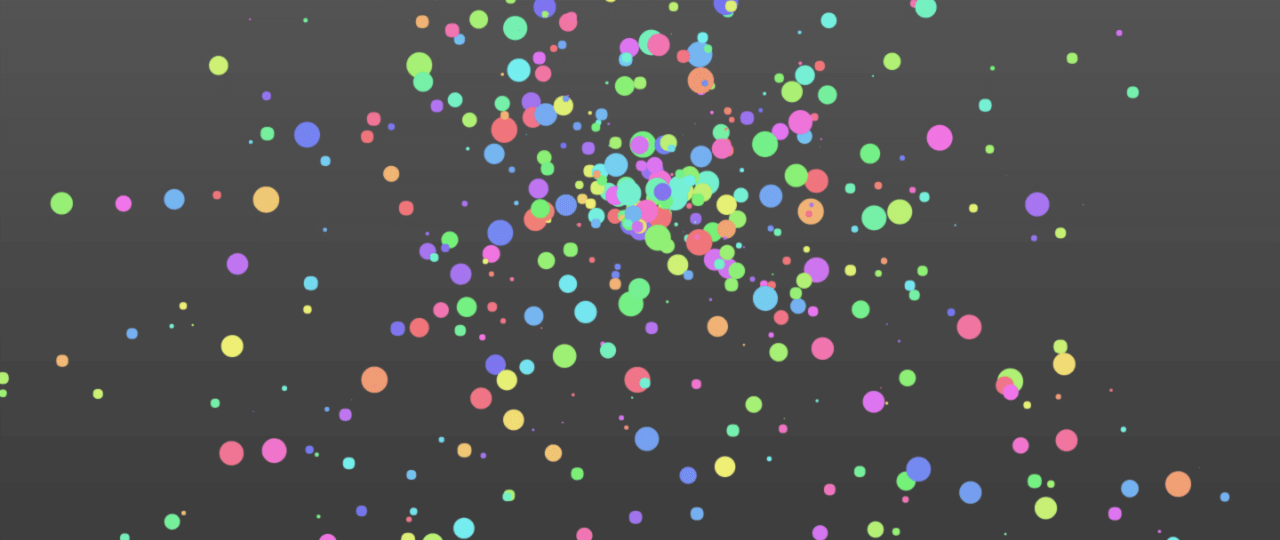
With any luck, you should get something like this:

This is a very base attempt at particle animation with HTML5′s canvas element. You can do a lot of other, crazier things with canvas, but this is a good place to start understanding how it works and how to get animated things moving with JavaScript.

You can also click and drag left and right on the screen to get some parallax going between the mountains and the grass. I’ll go into detail on how to achieve that effect later on in life at some point maybe perhaps.

View the demo (requires you to be running an HTML5-capable browser).

CSS3 Trickery: A Lesson in Gradients and Masks

18 Jan

I’m currently working on a project where one of the designs I’m to implement involves making one of these suckers:

However, that’s not all. Based on where the user is amidst these four steps, it will actually end up looking something like this:

Normally, I’d achieve this with CSS sprites and be rather sad about it all since whatever I’d be doing would be either a) not semantically correct, or b) terribly convoluted. Luckily, this project is specified to only having to run on Chrome, which I finally get to use some CSS3 and not care who knows it.

The First Attempt

Let’s back up a bit, though. Before the designer got his hands on this project, I was actually both designing and developing the entire shebang, so I actually had the entire thing already coded out, HTML, CSS, Javascript, PHP, and all. However, the company I work for finally got around to hiring a real designer, so out went my intuitive and standards-compliant touch interface and in came a guy with a graphic design degree who thought 18px was tall enough for buttons in a touch UI.

Anyways, here was my original markup for these steps:

1
2
3
4
5
6
<ul id="steps">
    <li class="done">1. Prescription</li>
    <li>2. Lenses</li>
    <li>3. Coatings</li>
    <li>4. Checkout</li>
</ul>

Simple enough, right? In fact, if those black lines weren’t diagonal, this whole problem could be solved with some border-right and :last-child action in addition to the box-shadow and border-radius styles I already had in place. Unfortunately, they’re about 30° from being easy, so I had to think of something else.

Starting out, I thought I would just apply both the gray and red gradients directly to the <li> elements and use -webkit-transform to rotate() a 1px wide pseudo element. Well, bad idea. That line of thinking ran me into a predicament that looked a bit like this:

You’ll notice that line is aliased to an unacceptable degree, not to mention the fact that having red and gray states next to each other created competing borders that I couldn’t think of a way to elegantly mask, so I had to change up tactics.

Progress!

My first step was to keep the gray gradient wholly contained to the actual <ul> element rather than each individual <li> but keep those pumping out the red gradients. This would help avoid the issue I had with my original solution where two borders at equal z-indexes were vying for dominance.

Then, I inserted a pseudo element that simply rendered a diagonal gradient that went from transparent to (almost) black to transparent with some slight fading for aesthetic appeal.

1
2
3
4
5
6
7
8
9
10
#steps li:before {
    content:'';
    display:block;
    position:absolute;
    width:40px;
    height:54px;
    top:0;
    left:-20px;
    background:-webkit-gradient(linear, left 14, right 40, color-stop(0%, transparent), color-stop(48%, transparent), color-stop(50%, #676767), color-stop(50%, #676767), color-stop(52%, transparent), color-stop(100%, transparent));
}

If you can’t tell, this is the diagonal line. It’s not as straightforward or as neat as using -webkit-transform, but it renders way better on the screen.

However, this still didn’t solve the issue of mixing diagonal lines with vertical gradients. No, that had to be rectified with another pseudo element.

1
2
3
4
5
6
7
8
9
10
11
12
13
14
15
16
17
18
#steps li.done:before, #steps li.done + li:not(.done):before {
    background:
    -webkit-gradient(linear, left 14, right 40, color-stop(0%, transparent), color-stop(48%, transparent), color-stop(50%, #592327), color-stop(50%, #592327), color-stop(52%, transparent), color-stop(100%, transparent)),
    -webkit-gradient(linear, left top, left bottom, color-stop(0%, #CA263D), color-stop(100%, #850304));
}
#steps li.done + li:not(.done):not(.current):after {
    content:'';
    display:block;
    position:absolute;
    width:40px;
    height:54px;
    top:0;
    left:-20px;
    background:
    -webkit-gradient(linear, left 14, right 40, color-stop(0%, transparent), color-stop(48%, transparent), color-stop(50%, #592327), color-stop(50%, #592327), color-stop(52%, transparent), color-stop(100%, transparent)),
    -webkit-gradient(linear, left top, left bottom, color-stop(0%, #E2E2E2), color-stop(100%, #949494));
    -webkit-mask-box-image:-webkit-gradient(linear, left 14, right 40, color-stop(0%, transparent), color-stop(51%, transparent), color-stop(51%, #000000), color-stop(100%, #000000));
}

While admittedly this isn’t the most beautiful piece of code I’ve ever come up with, it does work and works well. The :before changes for .done states by using two gradients for its multiple backgrounds: one diagonal for the line and one vertically for the red background. This leaves a red unwanted triangle on neighboring red/gray steps, so the :after element recreates the gray gradient and applies a diagonal mask to the top left portion of it.

Booya.

View the demo (requires you to be running a WebKit browser).